Currently, Associates cannot see scheduled class meetings in the Zoom Integration. Associates can instead use “Student View” to join the class as a student, and they can also use the meeting ID. This article covers how to use “Student View” to join your class sessions.
Using Canvas’s “Student View” feature to join your course’s class sessions:
The “Student View” feature in Canvas allows faculty and associates to see their course through the eyes of a test student. To activate student view in your Canvas course site, navigate to your course’s home page.
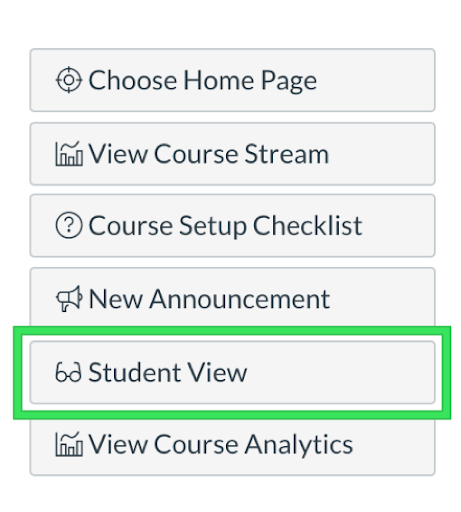
1. Click on the “Student View” button, which will appear either at the bottom or right of the home screen, depending on your screen size:
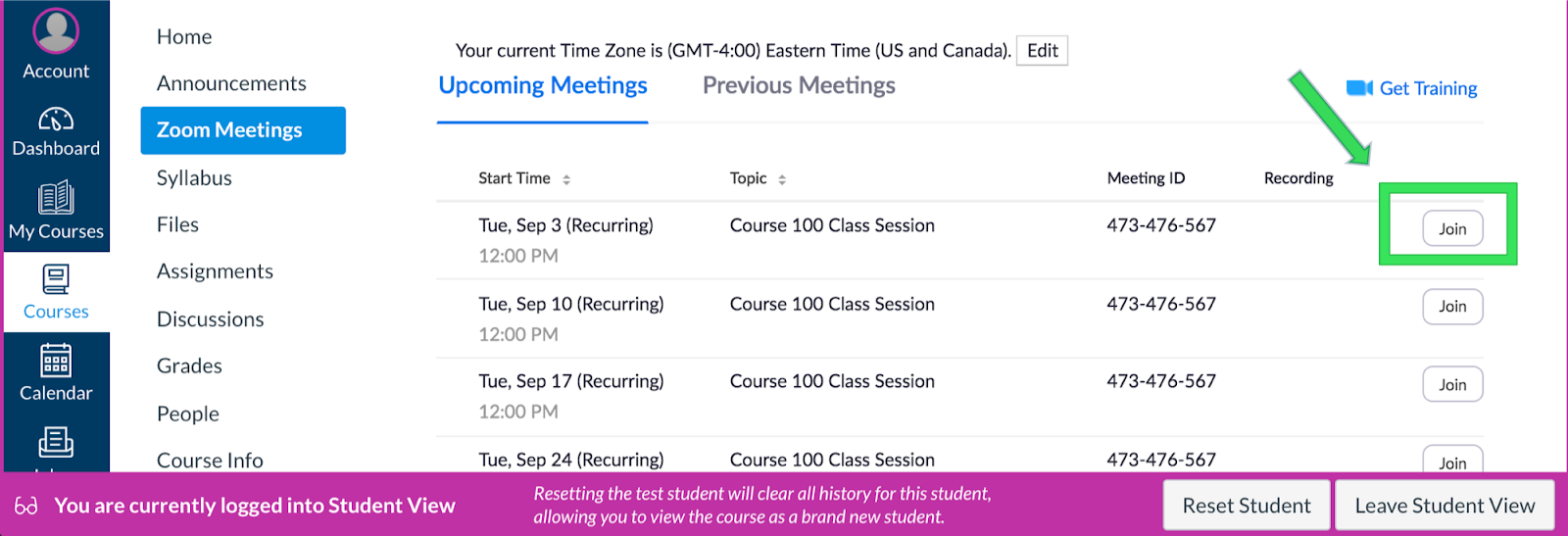
2. Once in “Student View”, you will see a magenta border surrounding the course site. To join your course’s class sessions, click on Zoom Meetings or Sessions and then on the “Join” button.
3. You will be joining the Zoom room as a “Test Student.” In order to change this default name once you're in the Zoom meeting, click on the “Participants” button on the toolbar.
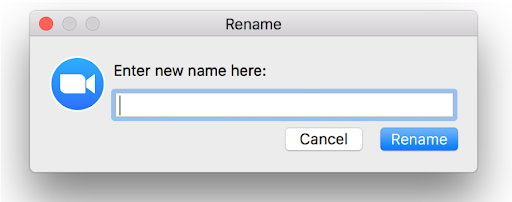
4. Under Participants, rename yourself by hovering over your name, clicking “rename”, and typing in your full name:

5. The host (Instructor) of the meeting can grant you co-host rights, if desired, once you are in the class session. You can follow these instructions each week to join your class session.